- Video Enhancer
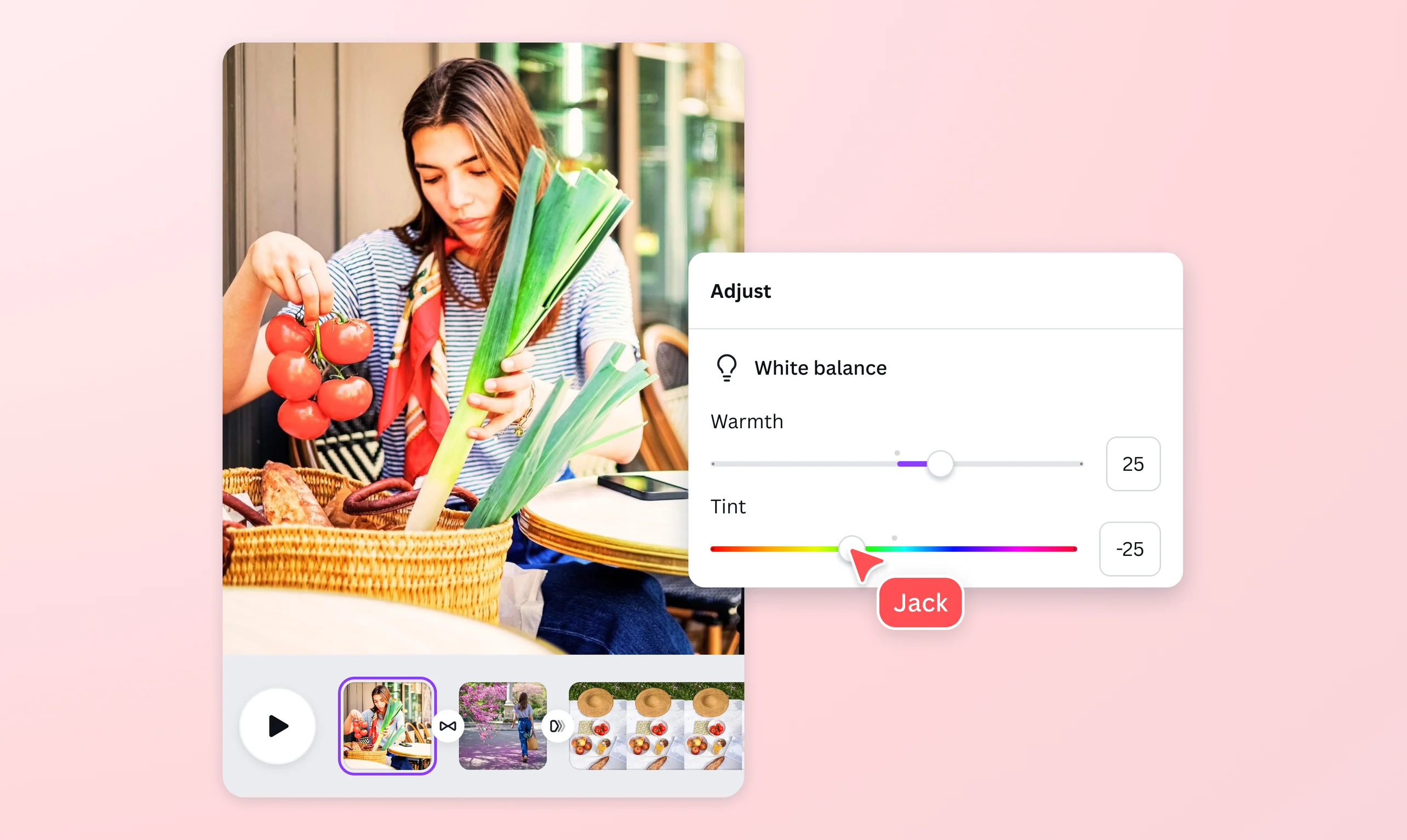
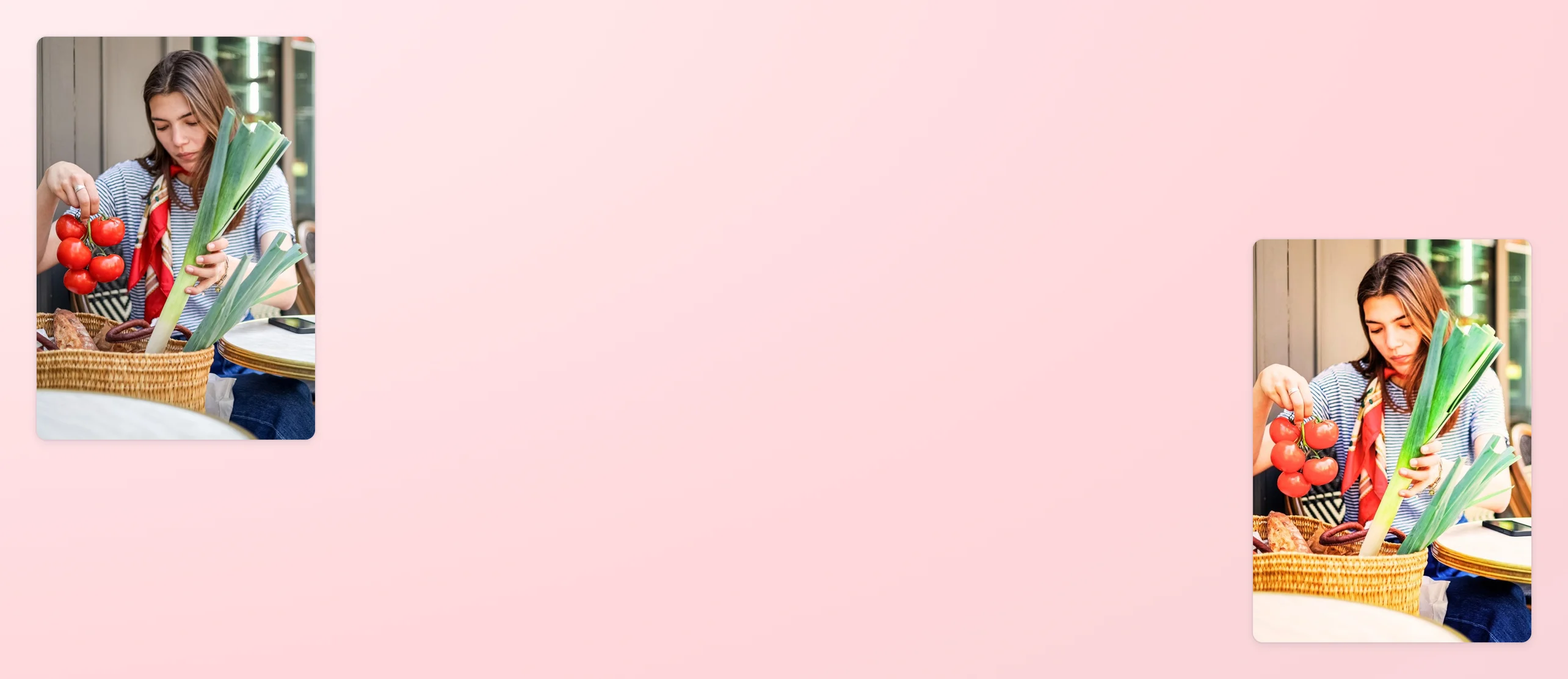
Nail down an aesthetic look with Video Enhancer
Enhance your video clips online and transform them into professional-looking videos within minutes. Find the right brightness, contrast, color vibrancy, and other settings to easily fit a scene or moment using our free video enhancer—coming soon on Canva’s video editor.
or drop it here
Learn about Canva's upload formats and requirements. See how we use your content in our Privacy Policy.
Add depth and define the mood

Use light, shadows, and colors to subtly add nuance to your clips and bring your videos to a whole new life. Create feelings of warmth or happiness with bright colors and vivid lines. Or convey a sense of sadness or negativity with cool-toned filters or hazy clips. Play with each setting to set the mood for your travel slideshows or tribute videos.
Set the motions for your vision

With intuitive controls and an easy-to-navigate video editor(opens in a new tab or window), enhance a video clip and match it with the perfect transition or animated effect. Make your TikTok dance challenge dynamic with crisp contrasts and highlights paired with a “Pop” to your every thump. Or animate a frame for your event’s video montage like your scrapbooking footage in luscious, nostalgic colors.
See it in effect

You know the vibe you want your audience to feel for every Instagram Reel, YouTube vlog, or product videos(opens in a new tab or window) you post. When you enhance a video, see the bigger picture always. Adjust each slider to how much brightness, tint, or blur you’re adding to a clip and see the effect in real-time while juxtaposed to other design elements in the frame. Make consistent enhancements instantly matching your font colors, photos, and vectors.
How to enhance video quality


Frequently Asked Questions
- Video enhancement is not a one-size-fits-all process, so it’s essential to pinpoint what’s wrong with a video to find the right solution. You aim to get the clearest, sharpest resolution possible for your clip or evoke a visual message. Tinker with the slider on some of these video properties:
- Brightness controls the bright/white parts of the image.
- Contrast adjusts the dark/black parts of the image.
- Saturation sets the vibrancy of the colors.
- Tint gives the video a hue of the selected color.
- Yes, but there are limitations. Adjust brightness, contrast, and saturation to improve dark and dull videos. You can also modify its vibrance (colors), highlights (white points), or shadows (dark points) to see how it registers onscreen. Some cases like excessive blurry spots, pixelation, and shakiness might need high-grade video enhancers or even a reshoot. Always remember to film with the right equipment to get high-quality raw footage. Luckily, most modern smartphones take good-quality videos!
- First and foremost, it is to improve the visual appearance of the video whenever there is poor lighting, dull colors, noise, grain, or loss of details. But also, video enhancement is a narrative device in the creative world. Clever use of colors, lights, and contrast can transform a video and how the audience watches it. Even simple changes can have a significant impact on the final output. Our video editor lets you enhance your videos online for free with beginner-friendly sliders that simultaneously preview the effect on your clips.

@curlyfrosista