- Speed Up Video
Speed up a video to kick it into high gear
Pick up the pace of your clips, montage, or process videos with fast-motion effects. Speed up a video using Canva’s free, online, and easy-to-use video speed controller.
or drop it here
Learn about Canva's upload formats and requirements. See how we use your content in our Privacy Policy.
No time wasted

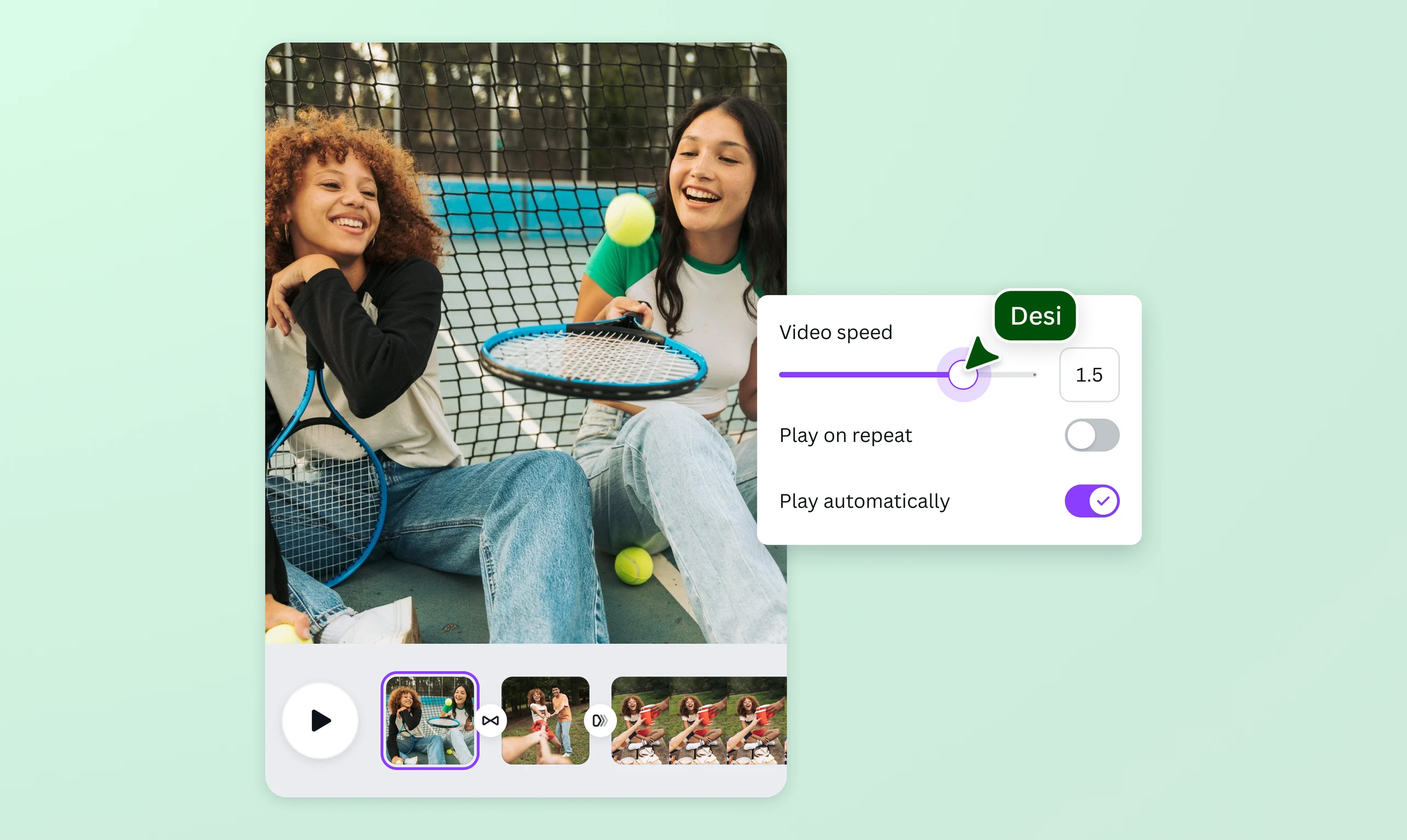
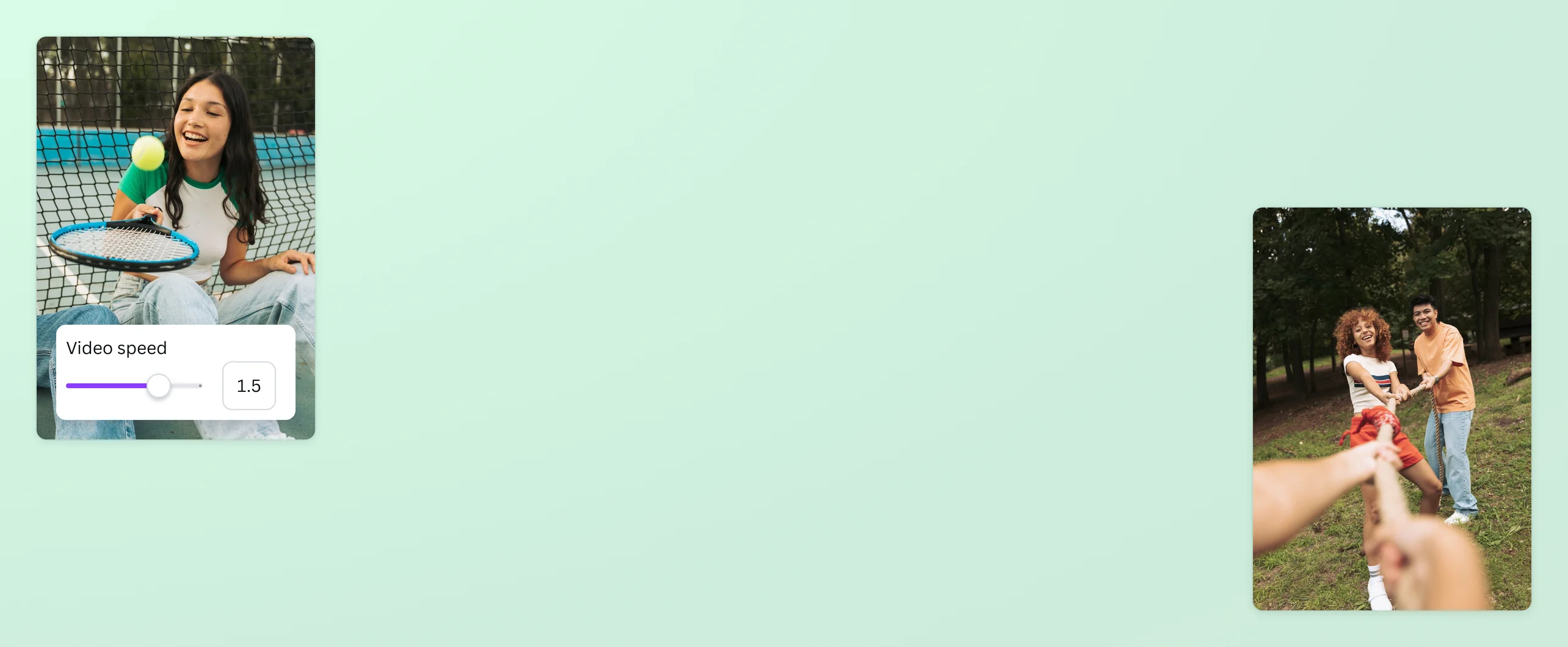
Whether you’re making a lifehack video for TikTok(opens in a new tab or window) or building a creative YouTube montage, you can apply a fast-motion effect with Canva’s nifty video speed controller. Just select Playback and drag the speed slider to your desired speed rate. Speed up your video up to 2x, plus you have the option to mute it or adjust its volume. Change the speed of videos in different formats, including MP4, MPEG, MKV, MOV, and WEBM. By speeding up your videos, you can keep things exciting and make the most of every second.
Keep the pace where it’s needed

Create different speed rates for various parts of your video project. If you’re working on a cooking demo and want to accelerate the process, simply split your video into sections and speed up a segment. Voilà, an instant time-lapse. From slow-paced footage to product ads, you can choose which sections of the video you need to speed up. It doesn’t stop there—you can slow down other parts of the video, as well. With our versatile video speed controller, you can speed up one section, keep the speed of another, or make a slow-mo effect for another. The result? A well-paced video that meets time constraints.
Go the extra mile for your project

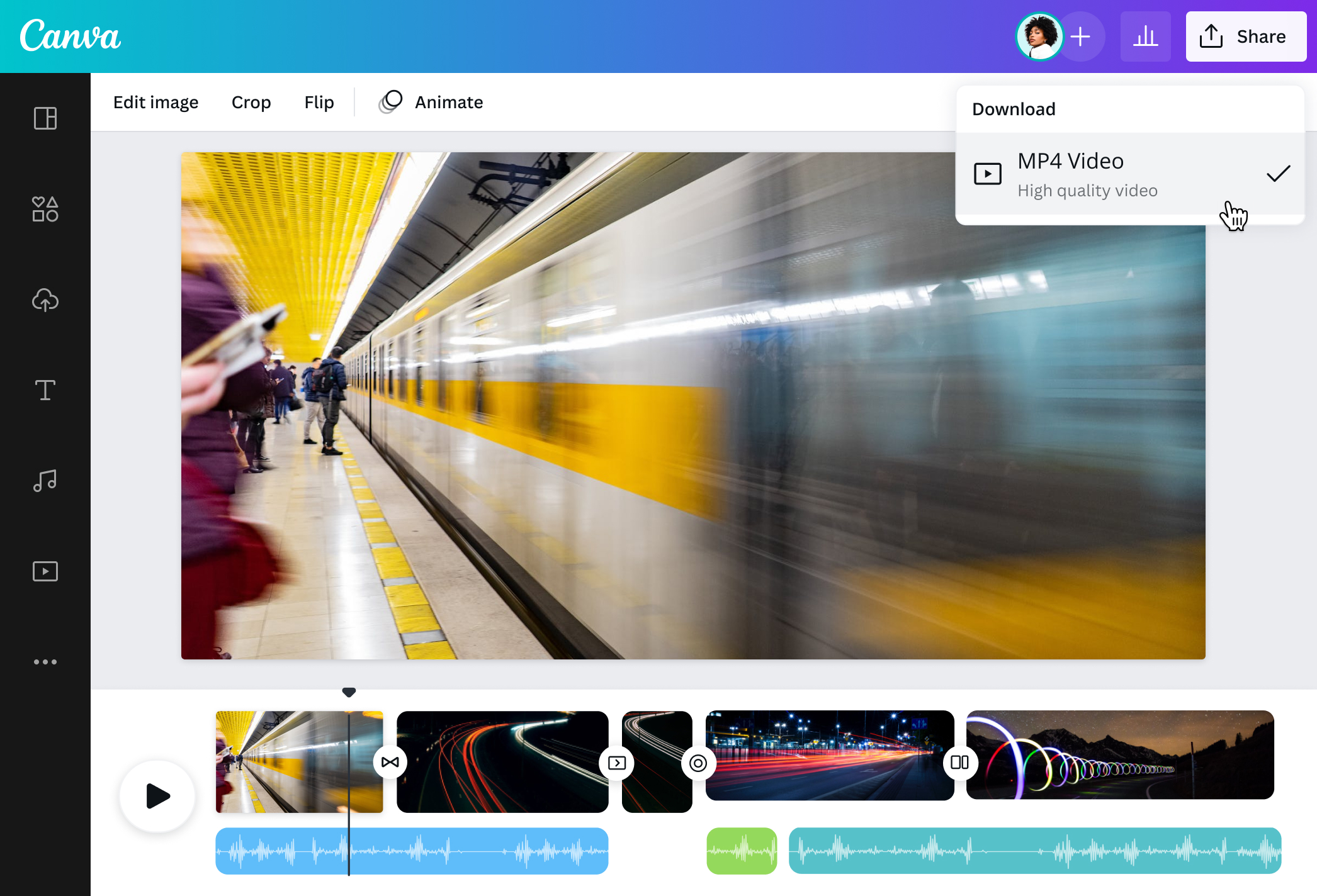
With our free, customizable templates and powerful video editor(opens in a new tab or window), Canva goes beyond speeding up a video online. After making a time-lapse, you can edit your video by trimming, cropping, rotating, or applying awesome video filters. Polish it with text or illustrations from our media library. If you want to beef up your video project, upload more clips, add motion paths(opens in a new tab or window), or browse our free B-roll library(opens in a new tab or window). To finish it all off, add a music track(opens in a new tab or window) from our free audio library to capture the full ambiance of your video. Then, download it as a watermark-free MP4 clip, ready to be shared to your favorite video platform.
How to speed up a video

Frequently Asked Questions
- To convert your video into a fast-motion clip, use our free video speed changer. Simply upload your video and drag it to the video timeline. Click Playback on the editor and drag the video speed slider to the right. You can also use our free mobile app to speed up videos on the go.
- The first step is to split your video into sections. Hover the cursor on the video timeline, right-click on your desired cutting point, and choose Split page. Split your video as many times as needed. After splitting, click the section you want to speed up and select Playback. Then, drag the video speed slider to your desired speed. Once you’re happy with the speed of every video segment, you can download the entire video project as a single, high-quality video file.
- After speeding up your video, you can add music to your time-lapse. Upload your own audio file or extract audio from another video, then drag and drop it onto the video timeline. If you don’t have a music track, browse our free sound library. Select Audio from the left panel and search for a track that captures the mood of your video. Select the sound, drag it to the timeline, then adjust its duration and volume.

@curlyfrosista