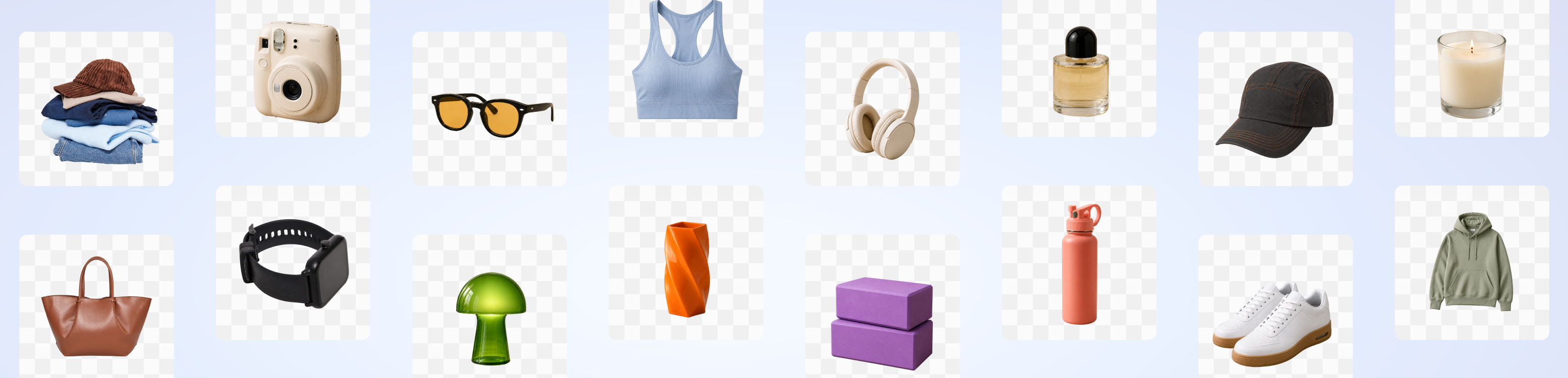
Online Background Remover
Try our background remover for free and remove image backgrounds in seconds. Keep editing in Canva to add a new background, text, and graphics, or build a complete design.
Drop files here or

By uploading, you agree to Canva’s Terms of Use. Read our Privacy Policy.
Remove your photo’s background for free with Canva’s background remover. Get a clean cutout of your subject, ready for a new setting or your next design — no manual tracing needed.
One tool. Many ways to create.
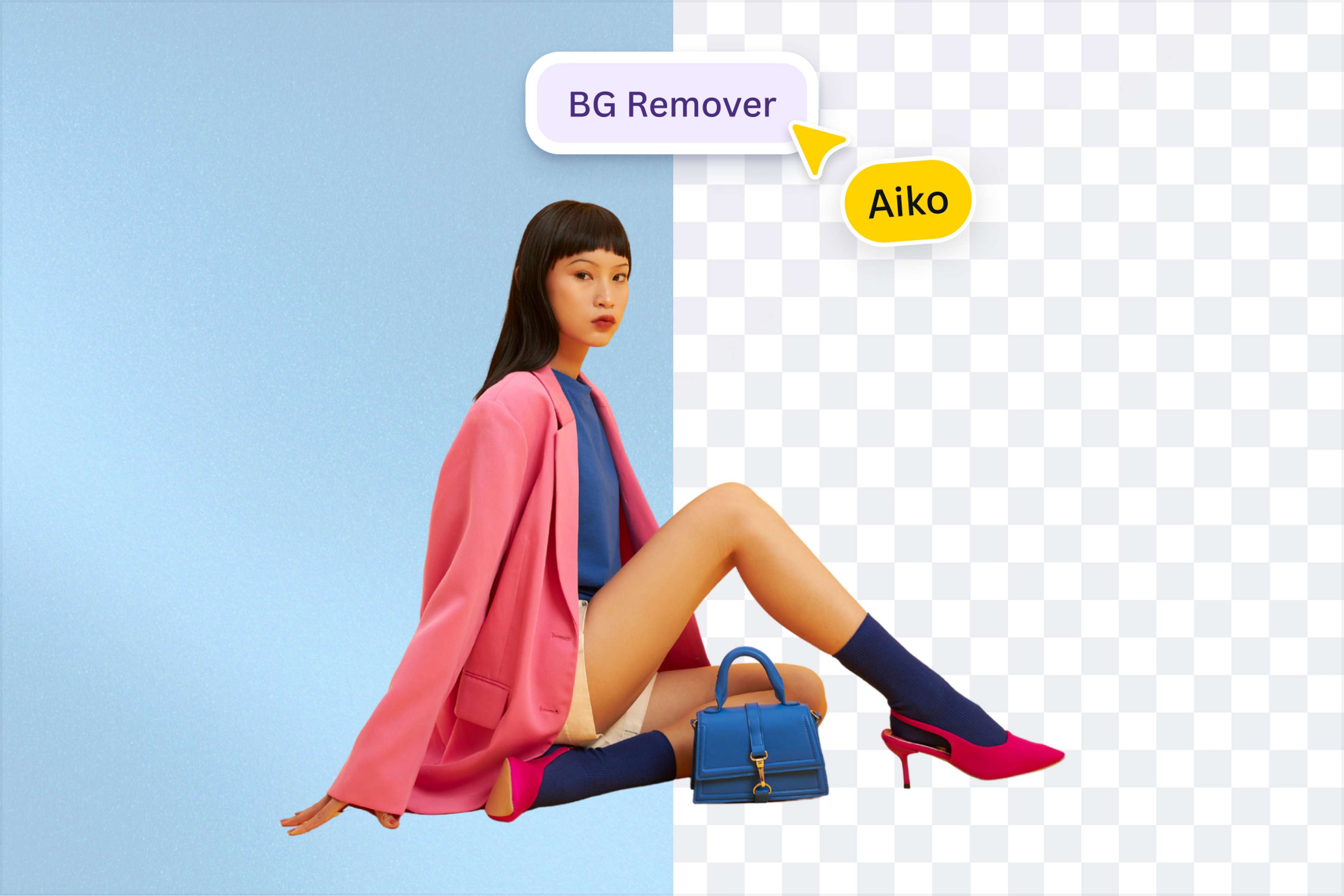
Remove backgrounds with precision
Remove your photo’s background in seconds with one click. Canva automatically isolates your subject, with no tracing or manual selections needed. For finer control, zoom in and use “Erase” and “Restore” to refine delicate details like flyaway hair, fur, and jewelry, or touch up edges for a cleaner finish. Remove leftover background or restore parts of your subject, with the option to undo changes as you go.
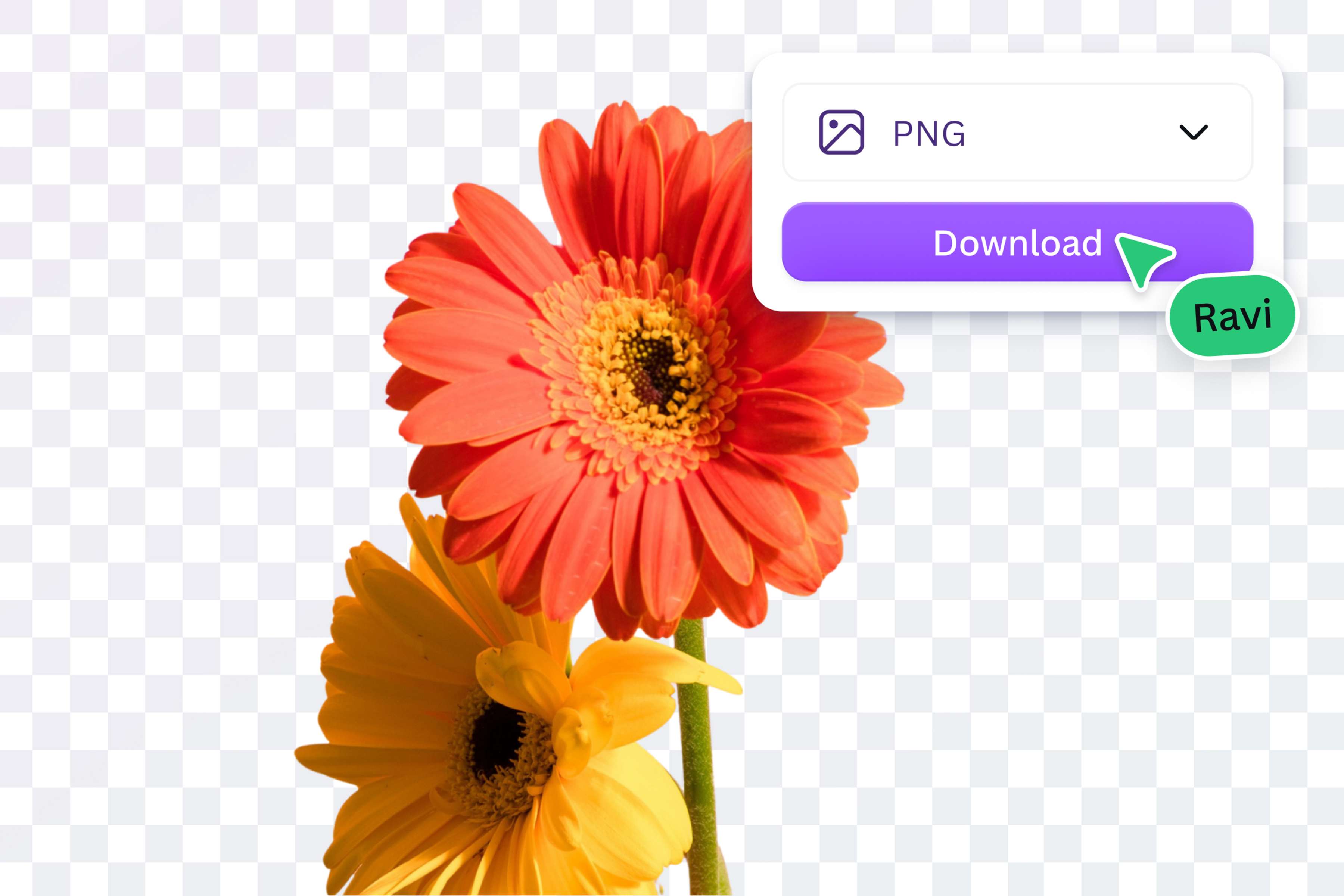
Create a reusable transparent asset
Download your finished image as a transparent PNG to layer your subject over other images or place it on any color. With no background attached, your image fits easily into different layouts and styles. Save reusable assets to your Brand Kit, so your team can easily find them and keep visuals consistent across branded materials. Remove the background once, then reuse your image in project after project.
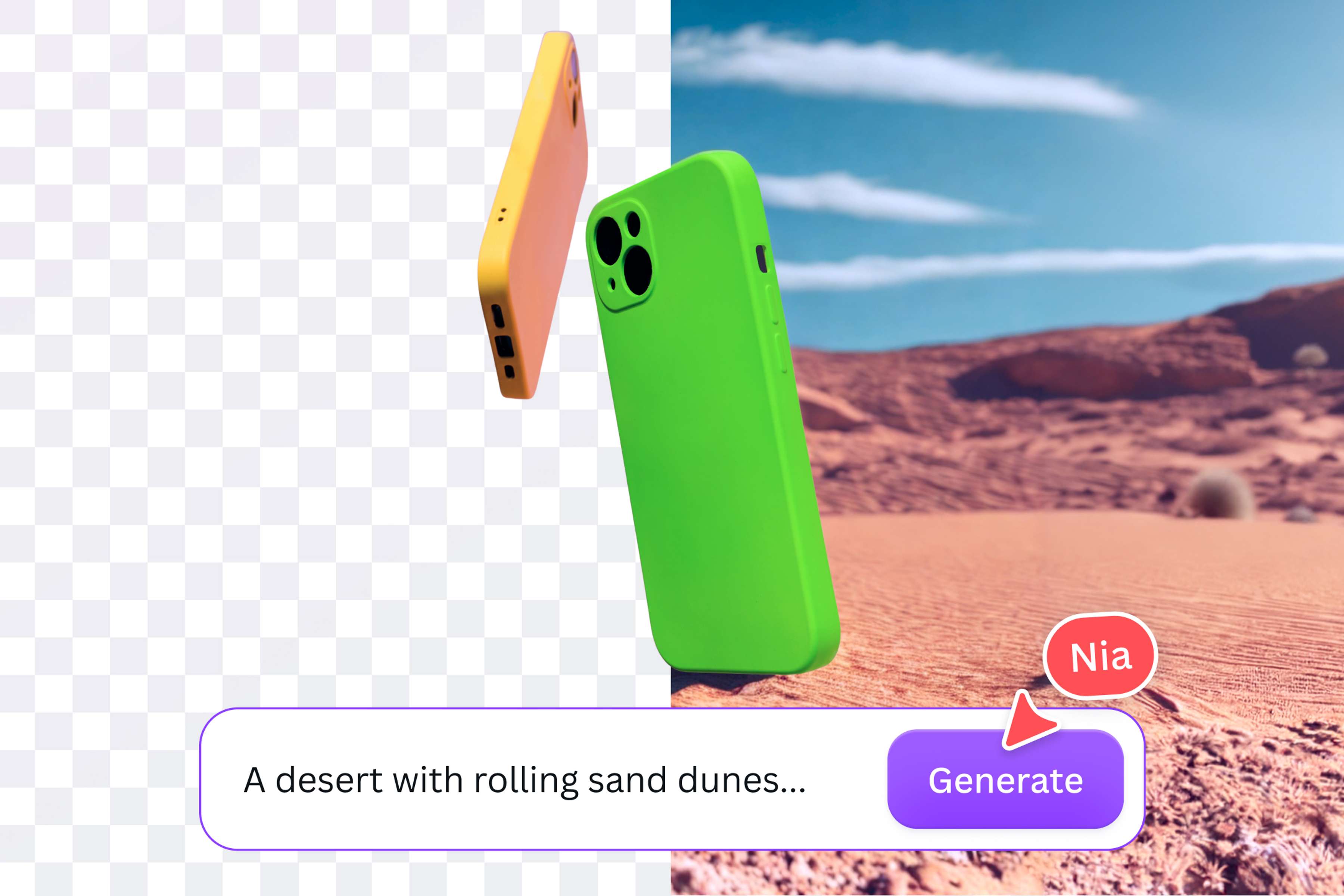
Give your image a whole new look
Create a new scene for your subject with a prompt, from a colorful studio backdrop to a sunny outdoor setting. Describe the lighting, colors, and mood you want to generate a background that suits your image. Or add your image to a Canva template and build a complete design around it. Customize the layout, fonts, colors, and text, then add graphics and arrange the elements to bring the whole look together.
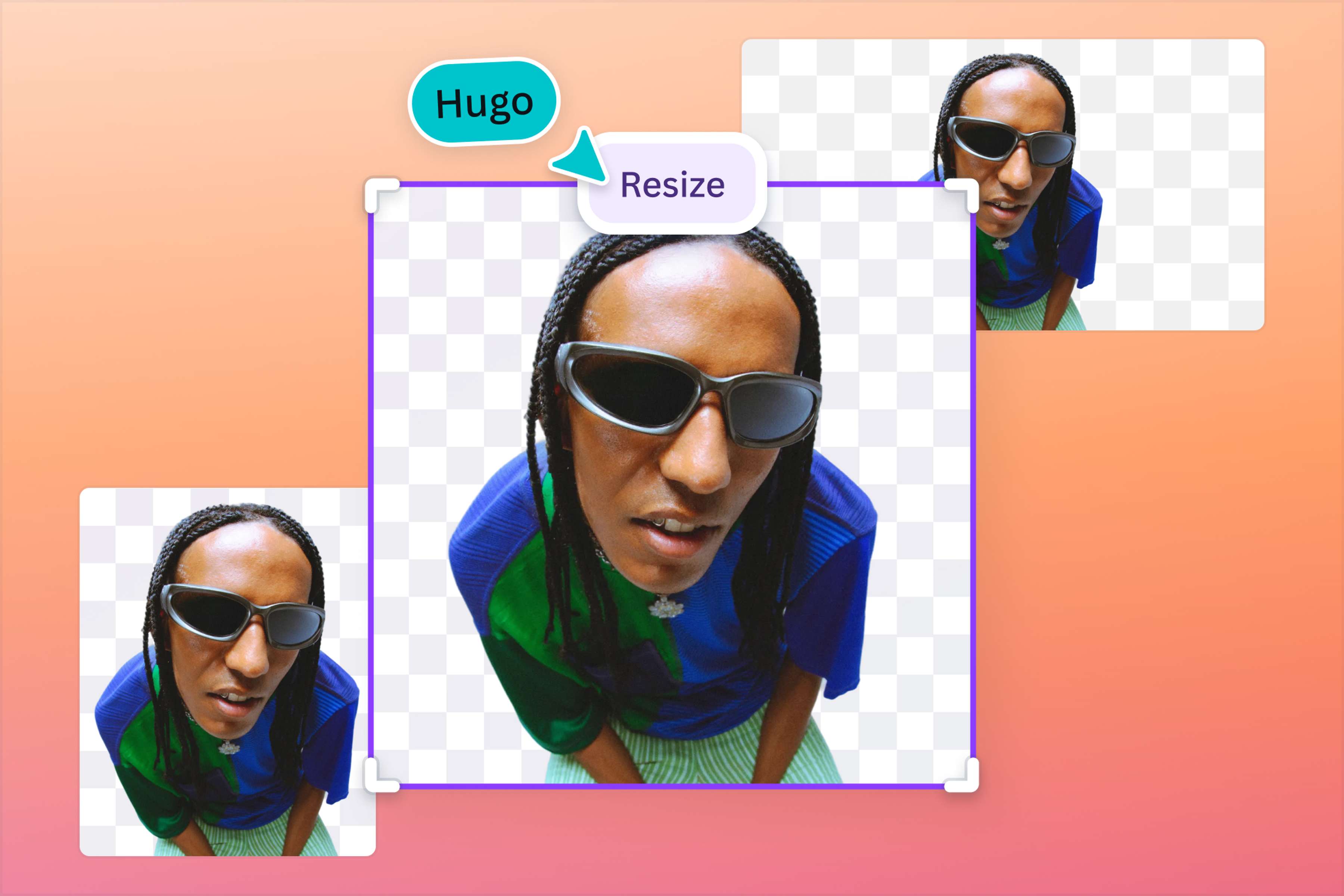
Resize and create across devices
Use Magic Resize to adapt your background-free image for different formats while keeping your subject intact and in proportion. Create versions for social posts, presentations, and more without rebuilding your design each time. Keep editing those designs wherever you are, with Background Remover on the web, desktop or mobile. Start on one device, then pick up where you left off on another and keep creating.
How to remove the background from an image
1
Upload your image
Upload an image from your device, or drag and drop it onto this page. Log in or create a Canva account if prompted, then wait a few moments for your image to finish uploading.
2
Remove the background
Canva automatically removes the background once your upload is complete. Preview the result and compare it with the original image to check the details before downloading.
3
Download or keep editing
Select “Download” to save a transparent PNG, or “Open in editor” to keep designing. Refine your image by erasing or restoring parts of your subject, or explore more editing tools.
Why choose Canva?
From photo to full design
With Canva, background removal is part of a complete design workflow. Go from your image to a finished design with editing tools, templates, text, and graphics in one place. Spend less time switching apps and more time getting your image right. Download a transparent PNG for use elsewhere or save reusable assets to your Brand Kit so your team can find them. Whether you need a quick photo edit or a complete design, create something ready to share.
Remove backgrounds in bulk
Upload a batch of images and remove their backgrounds in one go, without repeating the process for every photo. Download the results together and have a whole set of images ready for product listings, marketing materials, or your next design project.